Creating a web service for Apple Wallet passes with Node.js
I'll show you how to implement a web service for .pkpass files in Node.js with Express to dynamically update Apple Wallet passes.
In this article I’ll show you how to implement a web service for .pkpass files in Node.js with Express.
Background#
The purpose of the web service is to dynamically update .pkpass files once they’ve been added to a device.
Important: This is not a tutorial on how to create a .pkpass file with Node.js. This is only about implementing the web service for one. If you need a tutorial on creating a pass I can recommend this one. Here is the official documentation on the Apple Developer page.
Explanation#
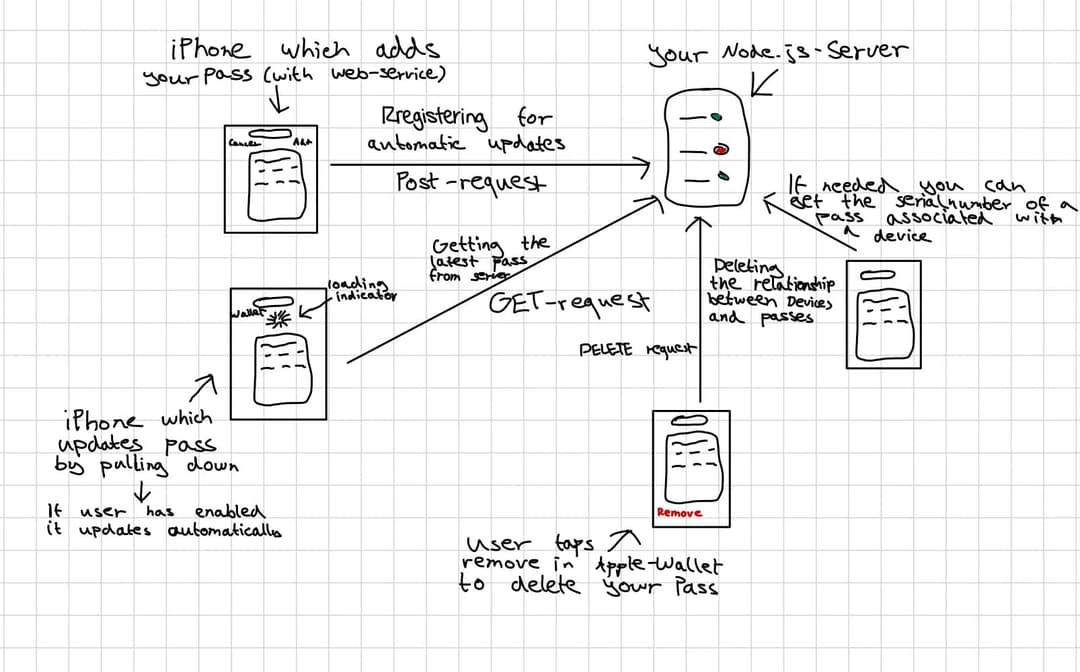
I’ve summarized how the web service works in my (extraordinarily beautiful ;)) sketch below.
Don’t worry if this feels like a lot at once — once you see the code you’ll be surprised how simple it actually is. To be fair, there are a few white lies in the sketch to keep things simple, but we’ll look at everything in detail in a moment.
I’ll walk you through the two most important endpoints (registering a pass for automatic updates and sending an updated pass to the client). After these two you should understand the principle and be able to implement the other endpoints yourself.
Preparation#
Before you start, set up a Node.js server (I use Firebase Functions). Also think about how you want to store data as it comes in from an endpoint. All this storage is necessary so that later you can select which pass — or more precisely, which pass on which device — should be updated by your server.
Note that I don’t store the data in a SQL database as suggested by the Apple developer documentation, but in Firebase Firestore. I’d strongly recommend using SQL though.
Here’s what the Apple documentation says you should store in each table.
Device table Contains the devices that contain updatable passes. Information for a device includes the device library identifier and the push token that your server uses to send update notifications.
Pass table Contains the updatable passes. Information for a pass includes the pass type identifier, serial number, and a last-update tag. You define the contents of this tag and use it to track when you last updated a pass. The table can also include other data that you require to generate an updated pass.
Registration table Contains the relationships between passes and devices. Use this table to find the devices registered for a pass, and to find all the registered passes for a device. Both relationships are many-to-many.
Registering a pass for (automatic) updates#
This endpoint is called on your web service URL after a pass is added to Apple Wallet. It only worked for me on a real iPhone, not on the iOS simulator — not even when I enabled the “Allow HTTP services” feature or the other developer settings.
The endpoint:
https://yourwebserviceurl/v1/devices/{deviceLibraryIdentifier}/registrations/{passTypeIdentifier}/{serialNumber}The endpoint is called as a POST request with 3 path parameters:
deviceLibraryIdentifier: A unique ID to identify and authenticate a device.passTypeIdentifier: Your passTypeIdentifier as specified when creating your pass.serialNumber: The serialNumber as specified when creating your pass.
As HTTP header you get the authorization value. You use this to verify that the request really comes from your pass. The value is: ApplePass {the authenticationToken you assigned to the pass when you created it}.
In the HTTP body you get back the pushToken. This is a long token that you’ll use later to trigger pass updates.
So what you should do is:
Create a new entry in your pass table with the passTypeIdentifier, the serialNumber, and a last-updated tag. You have to set the last-updated tag to the current time every time you change the pass.
Create a new entry in the device table with two columns: the deviceLibraryIdentifier and the pushToken you got from the HTTP body of the request.
If the pass was already registered, return a 200 status code. If it wasn’t registered yet and everything was successful, return 201. If something failed or the request isn’t authorized, return 401.
const app = express();
app.use(express.json());

app.post('/:version/devices/:deviceLibraryIdentifier/registrations/:passTypeIdentifier/:serialNumber', async (req, res) => {
    // Getting all parameters, headers and body data.
    const { version, deviceLibraryIdentifier, passTypeIdentifier, serialNumber } = req.params;
    const authHeader = req.headers.authorization;
    const pushToken = req.body.pushToken;

    // Creating references for our Firebase Firestore storage.
    const devicesRef = admin.firestore().doc(`devices/${deviceLibraryIdentifier}`);
    const passesRef = admin.firestore().doc(`passes/${serialNumber}`);
    const registrationRef = admin.firestore().doc(`registration/${deviceLibraryIdentifier}`);

    // Checking if request is authorized. Replace with your own token.
    if (authHeader !== 'ApplePass {your Authorization Token}') {
        res.status(401).send({
            result: authHeader,
        });
    }

    // Saving to Firebase Firestore, although you can use SQL and other DBs.
    try {
        const deviceSnapshot = await devicesRef.get();
        const passSnapshot = await passesRef.get();
        const timeStamp = admin.firestore.FieldValue.serverTimestamp();

        if (!deviceSnapshot.exists) {
            const deviceData = {
                deviceLibraryIdentifier,
                pushToken
            };
            await devicesRef.set(deviceData);
        }

        if (!passSnapshot.exists) {
            const passData = {
                serialNumber,
                passTypeIdentifier,
                timeStamp
            }
            await passesRef.set(passData);
        }

        await registrationRef.set({
            passSerialNumber: serialNumber
        }, { merge: true });

        res.sendStatus(201);

    } catch (error) {
        console.error("An error occurred:", error);
        res.sendStatus(500);
    }
});
Updating a pass#
This endpoint creates and signs an updated version of your pass and returns it to the device that called it. This happens either automatically at certain intervals (if the user has automatic updates turned on for your pass), via a push notification you send, or when the user does the typical iOS pull-down-to-update gesture on the pass.
The endpoint:
https://yourwebserviceurl/v1/passes/{passTypeIdentifier}/{serialNumber}The endpoint is called as a GET request with 2 path parameters:
passTypeIdentifier: Your passTypeIdentifier as specified when creating your pass.serialNumber: The serialNumber as specified when creating your pass.
As HTTP header you get the authorization value as above. In your implementation you can check that it matches the one you specified when creating the pass, to make sure the call actually comes from your pass.
If the pass is successfully created, signed, and returned, respond with a 200 status code. For everything else (failed or not authorized) return 401.
app.get('/:version/passes/:passTypeIdentifier/:serialNumber', async (req, res) => {
    // Your logic to create and sign a pass.

    // Send your newly generated pass.
    res.set('Content-Type', 'application/vnd.apple.pkpass');
    res.status(200).send(newPass);
});
And if you’re using Firebase Functions, don’t forget to expose the endpoints at the end:
exports.app = functions.https.onRequest(app);That was my little article about the web service for Apple Wallet passes. I hope it saved you some time and nerves. If you have any questions don’t hesitate to reach out.